
8 Steps to create your 2024 Posting Periods in SAP Business One
Over the last few weeks, many of our hosted SAP Business One Consensus Cloud users have noticed a new security warning when connecting to their system via Remote Desktop.
We know this caused concern — and in some cases, stress — especially since this message appeared suddenly and looks serious at first glance.
The most important thing to know upfront is this:
- Your SAP Business One environment is NOT less secure.
- Nothing has been compromised.
- This is a Microsoft security enhancement — not a change made by Consensus.
Let’s break down what changed, why you are seeing this message, and exactly what to do, step by step.
1. Why am I seeing this new warning?
Microsoft recently released a security enhancement for Remote Desktop connections.
This update gives end users more visibility and control over what their local device is allowed to share with a remote system.
In simple terms:
- Before: device sharing options were mostly “behind the scenes”
- Now: Microsoft asks you explicitly what you want to share each time a Remote Desktop connection is created or updated
This applies to all Remote Desktop users everywhere, not just Consensus Cloud customers.
2. First things first: What is Remote Desktop?
Remote Desktop (RDP) is a secure Microsoft technology that lets you:
- Use a computer or server hosted elsewhere
- As if you were sitting directly in front of it
In your case, Remote Desktop allows you to securely access:
- Your hosted SAP Business One system
- From your own laptop or desktop
All connections are:
- Encrypted
- Certificate‑based
- Secured on the server side by our Hosting Team (this has always been the case)

3. What is an RDP file?
An RDP file is simply a small connection file that:
- Knows where to connect
- Remembers how to connect
- Stores your display and device‑sharing preferences
Think of it as:
“A saved Remote Desktop profile”
When you:
- Download a new RDP file
- Or create a shortcut to one
You’re reusing those same saved settings every time you connect.
4. Why does Microsoft now ask me what I want to share?
The new security prompt asks which local resources your computer is allowed to make available during the Remote Desktop session.
You may see options like:
- Drives
- Clipboard
- Printers
- WebAuth
- Other supported Plug and Play (PnP) devices
This does not mean something new is being exposed. It simply means Microsoft now requires your confirmation.
5. What should I select to keep working normally?
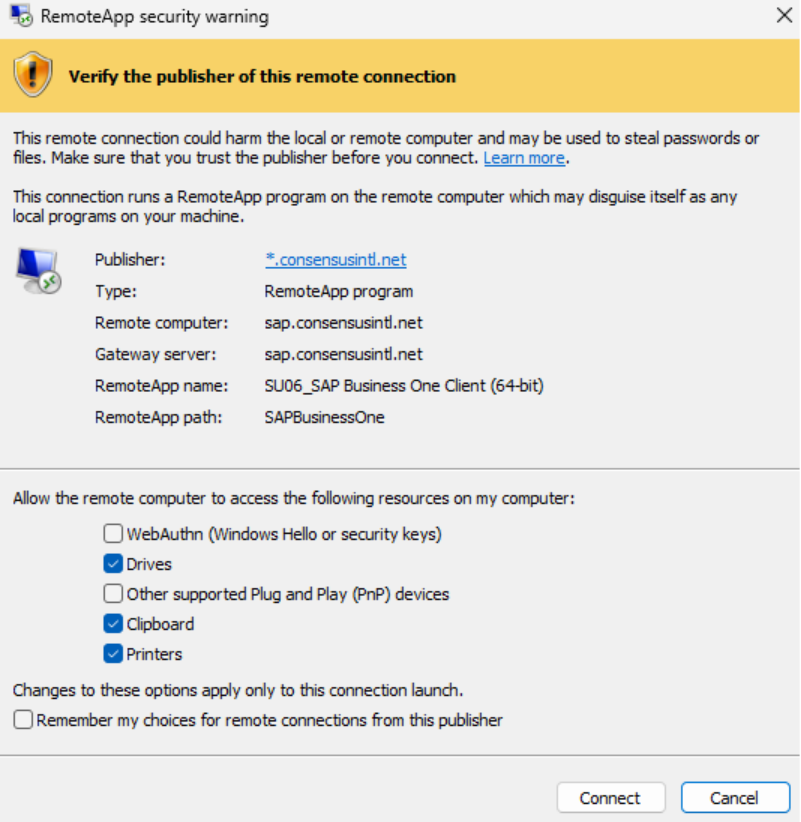
To continue working with SAP Business One as you always have, we recommend selecting:
- Drives
Allows uploading and downloading files between your computer and SAP Business One
- Clipboard
Allows copy & paste (for example, copying numbers, text, or document content)
- Printers
Allows printing from SAP Business One to your local or network printer
What about the other options?
- WebAuth
- Other supported Plug and Play (PnP) devices
These are disabled on the server side in our hosting environment.
- Selecting or not selecting them makes no functional difference
- They do not reduce or increase security in your SAP system
6. Why does this message appear again sometimes?
This usually happens for one of two reasons:
1. You are using an old RDP file
Many users have multiple RDP files saved over time:
- On the Desktop
- In Downloads
- Pinned to the taskbar
If you open an older file, Windows treats it as a new configuration — and the warning appears again.
2. A new RDP file was downloaded, but the old one is still being used
This is very common and completely understandable.
 Recommended setup: Clean, simple, and stress‑free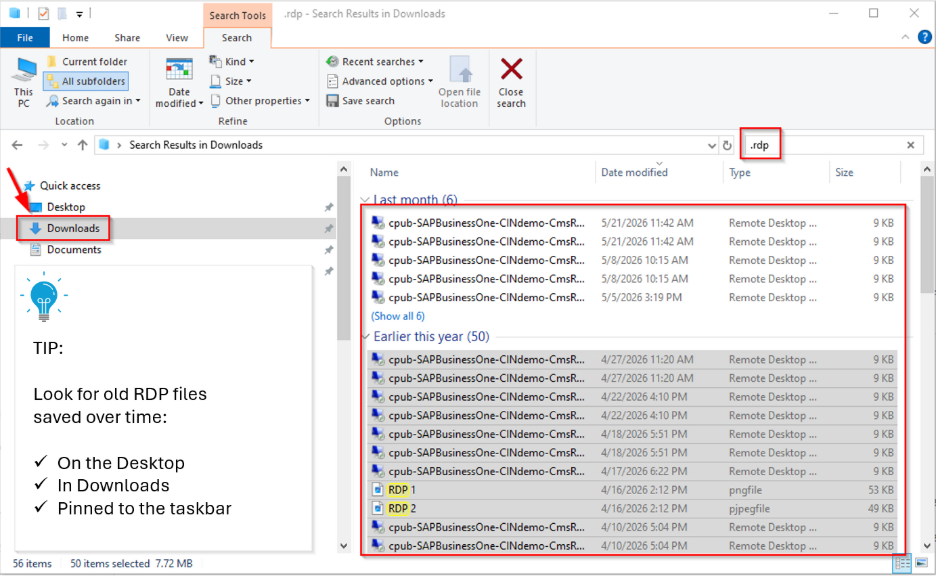
Step 1: Delete old RDP files
- Go to:
- Desktop
- Downloads
- Any folder where you may have saved RDP files
- Delete older .rdp files you no longer use
Tip: You only need one current RDP file.
Step 2: Download a fresh RDP file
- Download a new RDP file from the connection source provided by Consensus
- Open it once
- When prompted, select:
- Drives
- Clipboard
- Printers
- Click Connect
Step 3: (Optional but recommended) Create a shortcut
If you like quick access:
- Right‑click the new RDP file
- Choose Create shortcut
- Move the shortcut to your Desktop or taskbar
- The shortcut will always use the same approved settings
- You will not be prompted again unless Microsoft changes something in the future
7. What about the “Unknown Publisher” message?
 Some users may see an “Unknown Publisher” warning, and the options to select might be grayed out.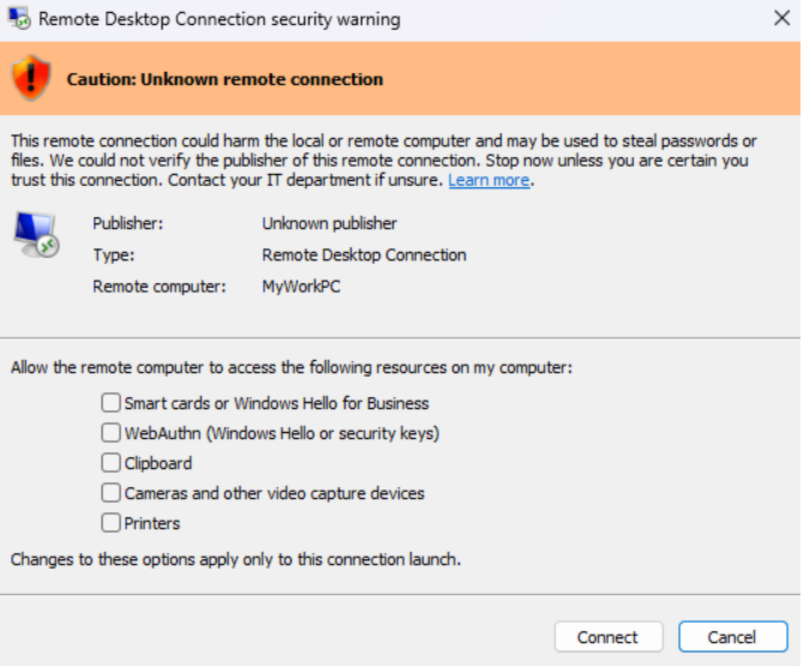
This usually means:
- The RDP file is very old
- Or it was created before recent Microsoft security standards
The correct steps to fix this are explained in detail in the recommended setup section
- Download a brand‑new RDP file
- Stop using the old one
Once using a fresh file, this message should no longer appear.
- Download a brand‑new RDP file
- Stop using the old one
8. Is my SAP Business One environment unsafe because of this new warning message?
No. Our Hosting Team at Consensus:
- Has certificates, encryption, and security controls in place
- Has always secured Remote Desktop connections
- Did not change anything as a reaction to this prompt
This update:
- Does not weaken your connection
- Does not expose new data
- Does not indicate a problem
It simply gives you more visibility and choice — even if that choice feels alarming at first.
Final takeaway
If you remember only three things, let it be these:
- This is a Microsoft security improvement
- Your hosted SAP Business One system is still safe
- Using one clean, up‑to‑date RDP file avoids confusion and repeated prompts
If you need help cleaning up old RDP files or downloading a new one, our team is here to help — no question is too small.
Microsoft’s official documentation explains these new prompts in more detail here:
https://learn.microsoft.com/en-us/windows-server/remote/remote-desktop-services/remotepc/understanding-security-warnings
While the language is more technical, the key takeaway is that these prompts are part of Microsoft’s effort to give users more visibility and control — not an indication of a problem.
Consensus is an SAP Premier Partner that sells, implements, trains, and supports its customers on SAP Business One from its offices in Florida, Texas, and Massachusetts.